Help Center / Troubleshooting & FAQ / “My microphone isn't working”
“My microphone isn't working”
Use Chrome, click Allow, and check your OS mic permissions.
3 min read
Almost every microphone problem comes down to one of four things. Work down this list.
- 1Use Google Chrome — Safari is not supported (see Browser support).
- 2Click Allow when the browser asks for the microphone. If you dismissed it, reload and try again.
- 3Check your operating system's microphone permission for the browser.
- 4Make sure the right microphone is selected — not your laptop's built-in mic when you meant the mixer.
Warning
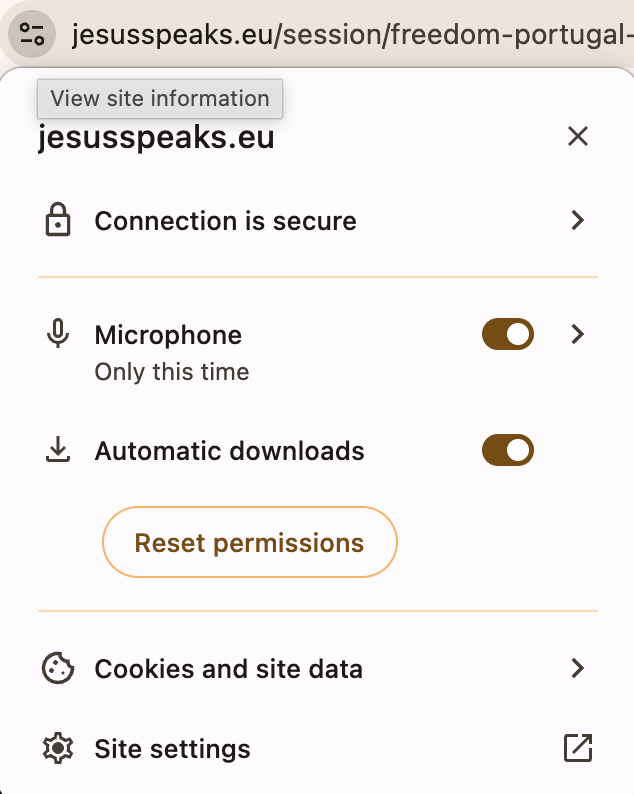
Blocked the prompt by accident?
Click the camera/mic icon in Chrome's address bar, set the microphone to Allow, and reload the page.
Still stuck?Report a problem →
Related articles
Troubleshooting & FAQ