Help Center / For Operators / The operator screen, explained
The operator screen, explained
A guided tour of every control on the live session screen.
5 min read
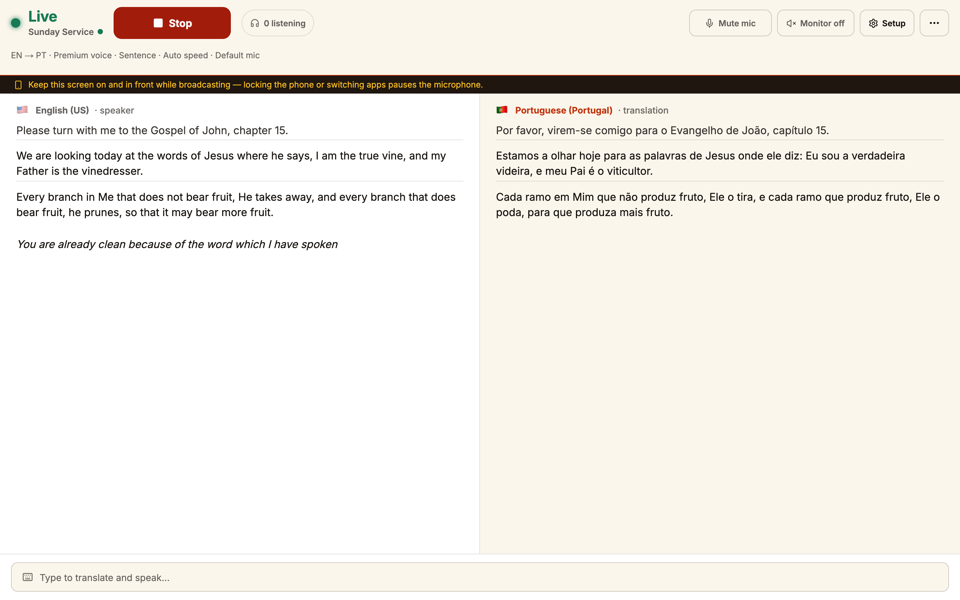
The operator screen is mission control for a live service. Before you run one, take a minute to learn the layout — everything you'll touch on Sunday is here.
The main panels
- Live transcript — what you're saying, transcribed as you speak.
- Translation — the same words in the room's language, streaming in real time.
- Language pair selector — with your saved favorites for one-tap switching.
The live bar and Setup
- Monitor on / off — whether YOU hear the translation at the desk. Listeners are never affected.
- Setup — everything decided before you start: the language pair and favourites, the microphone, the voice (gender, speed, quality), delivery mode, and the talk's context and documents.
- Delivery — Sentence, Phrase or Flash: how much speech is gathered before each translation.
- Mute mic — pause the microphone without ending the session.
- End & clear (in the ⋯ menu) — stop the broadcast and wipe the on-screen transcript for everyone.
- Projector view (in the ⋯ menu) — open the big-screen display in a new tab.
Two things to watch
- The health light — one indicator that all systems are healthy.
- Document upload — add sermon notes so names and key terms come through right.
Still stuck?Report a problem →
Related articles
Starting & stopping a session→Choosing the language pair (and favorites)→The health indicator→Uploading documents for accuracy→
For Operators